Lines between methods in the C# editor (CodeRush/DxCore plugin)

Like most .NET developers,  I used to do VB/VBA coding before C# came along. But, one thing I always missed in in the C# code editor was the lines that the VB editor puts between methods. An an avid user of CodeRush and Refactor! Pro, which itself does code structure painting in Visual Studio, I’ve created a DxCore Plugin that draws lines between methods which (IMHO) improves on the ones in the VB code editor.

Here’s a screen shot of it in action:

Draw Lines Between Methods - in action

And here’s the exciting options page:

Draw Lines Between Methods - settings

Even if you’re a VB.NET person you might like to try it to see if it works any better for you than VB’s built-in lines (although I guess you’d need to turn off the built-in method-separating lines somewhere in Tools Options).

The project is hosted on Rory Becker’s DX Core Community Plugins Google Code project, where you can download the source and binaries.

Let me know how you get on with it in the comments 🙂

IE 6 bug causes jQuery globalEval error

UPDATE: this is fixed in jQuery 1.2.6 and later, see ticket #2709.

After upgrading our code base to use the latest jQuery 1.2.3 (previously we were using 1.2.1) our testers discovered a quite ridiculous bug in IE 6 that caused jQuery to fail (IE 7 is fine, which is why we didn’t experience it development). The issue manifested itself as the script error message “Problems with this web page might prevent it from being displayed properly…

Line: 24
Char: 76
Error: Invalid Argument
Code: 0
...

…and various document.onready handlers not running.

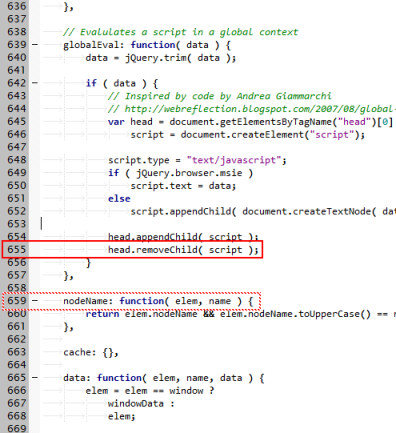
Of course line 24, char 26 doesn’t really help much because IE always seems to get this a few lines out of whack and with the minified version of jQuery it would be way out. So I replaced the minified version jQuery.js with the uncompressed version, cleared the browser cache and re-visited the web app in IE 6. This then gave line 659, char 4 as the offending location:
image

After whacking in a several alert()s in the lines in the vicinity of 659, it turns out the issue is with head.removeChild(script) in the globalEval function, 4 lines up. Obviously.

So, why was head.removeChild failing? I put the following debug code in:

alert(head.tagName) // displays "HEAD" as expected
alert(script.parentNode.tagName) // displays "BASE" !!!

So, it transpires that our pages having a <base> tag within the <head> contributes to the issue. IE 6 seems to get totally confused as to the structure of the document HEAD when there’s a self-closing or unclosed BASE tag. BASE tags I suppose are quite rare and this is probably why this issue doesn’t appear to be commonplace. (The BASE tag is in there for legacy reasons in our code, but they’re also quite useful when you save the source of HTML pages they still pick up images and script from the originating server which is handy for debugging automatically-generated HTML.)

So, before, the offending base tag looked something like this:

<base href='http://example.com/blah' />

After some experimentation it appears IE6 doesn’t exhibit its odd behaviour if you do this instead:

<base href='http://example.com/blah'></base>

Job done.

Update: Chris Venus comments about the reason for the weird behaviour in IE6 and earlier. Previously <base> was interpreted as a container, which could appear multiple times in a document: different sections within the page could have different bases, so would logically end up wrapped within each <base> (now there’s a feature everybody wanted, right?). Because of this, <head> got treated as a “section” of the document and elements added to it ended up as children of any <base> it contained rather than siblings. See IEBlog: All your <base> are belong to us.

Images Broken When Viewing Windows SharePoint Services RSS Feeds in Outlook

If using Windows Live Writer or Microsoft Word 2007 to create blog posts in Windows SharePoint Services (WSS) 3.0 it appears, at least on our installation of SharePoint, that when you embed new images in the post, the image tags are generated with relative links, e.g. <img src="/Lists/Posts/Attachments/51/image_thumb.png"> . This is fine if you’re viewing the feeds in a web browser as it can resolve the server name for the links from the feed address. But if you’re using Outlook 2007 to subscribe to the feeds, any images you embedded in the post using Live Writer or Word are generated as relative links, Outlook can’t/doesn’t resolve the site name hence the images are broken:

image

Whose fault this is (Outlook/SharePoint/Live Writer) I don’t know, but fixing it required a bit of coding hackery – I couldn’t find any option in the SharePoint configuration for controlling the generation of RSS.

WSS v3.0’s default RSS generator is a page called ListFeed.aspx that lives in Program FilesCommon FilesMicrosoft SharedWeb Server Extensions12templatelayouts. By default it looks like this:

<%@ Assembly Name="Microsoft.SharePoint.ApplicationPages" %>
<%@ Page Language="C#" Inherits="Microsoft.SharePoint.ApplicationPages.ListFeed" %> 

Clearly all the logic is in Microsoft.SharePoint.ApplicationPages.dll. So to fix this, I backed up this file and added the following code to ListFeed.aspx which basically passes all of the feed content through a filter using HttpResponse.Filter which uses a regular expression to replaces any relative <img src="/blah"> tags with the absolute <img src="http://site/blah">.

<%@ Assembly Name="Microsoft.SharePoint.ApplicationPages" %>
<%@ Page Language="C#" Inherits="Microsoft.SharePoint.ApplicationPages.ListFeed" %>

protected override void OnInit(EventArgs e)
{
  base.Response.Filter = new RelativePathFilter(base.Response.Filter, this.Request, this.Response);
  base.OnInit(e);
}

class RelativePathFilter : System.IO.Stream
{
  System.IO.Stream _innerStream;
  string _siteUrl;
  Regex _imagesRegex;
  HttpResponse _response;

  public RelativePathFilter(System.IO.Stream innerStream, HttpRequest request, HttpResponse response)
  {
    _innerStream = innerStream;
    _siteUrl = (new Uri(request.Url, HttpRuntime.AppDomainAppVirtualPath)).AbsoluteUri;
    _response = response;

    // Finds rooted images  tag to be split between 2 Write()s
    content = _imagesRegex.Replace(content, @"$1" + _siteUrl);

    byte[] newBuffer = _response.ContentEncoding.GetBytes(content);
    _innerStream.Write(newBuffer, 0, newBuffer.Length);
  }

  public override bool CanRead { get { return _innerStream.CanRead; } }
  public override bool CanSeek { get { return _innerStream.CanSeek; } }
  public override bool CanWrite { get { return _innerStream.CanWrite; } }
  public override void Flush() { _innerStream.Flush(); }
  public override long Length { get { return _innerStream.Length; } }
  public override long Position { get { return _innerStream.Position; } set { _innerStream.Position = value; } }
  public override int Read(byte[] buffer, int offset, int count) { return _innerStream.Read(buffer, offset, count); }
  public override long Seek(long offset, System.IO.SeekOrigin origin) { return _innerStream.Seek(offset, origin); }
  public override void SetLength(long value) { _innerStream.SetLength(value); }
}

I’m not entirely sure whether hacking around with these files is supported (although it did seem to survive the installation of WSS 3.0 SP1), or if there’s a better way of doing this, so use at your own risk.

Update 22 April 2008: Modified code so that it doesn’t assume the site is at the root of a virtual server.

Tests-behind: Tests as Code-Behind Files

One the first issues that you have to deal with when writing unit tests is – where do I put the the tests? Here’s where I prefer to have them: as close to the code that’s being tested as possible, like so:

tests behind 1

The tests class is hooked up to the original source file in the same way that ASP.NET code-behind files are, as a dependent project item.

You can do this by hacking the *csproj file directly using the <DependentUpon> tag, but to automate it I’ve written a Visual Studio macro (works in Visual Studio 2008, should work in Visual Studio 2005) that creates an appropriately-named tests class that can be invoked like so:

Here’s the macro code (copy and paste into a code module in the Visual Studio Macros IDE: Tools > Macros > Macros IDE)

Sub AddTestsFile()
   Dim item As ProjectItem = DTE.SelectedItems.Item(1).ProjectItem
   Dim fileName As String = item.FileNames(1)
   Dim dir As String = System.IO.Path.GetDirectoryName(fileName)
   Dim bareName As String = System.IO.Path.GetFileNameWithoutExtension(fileName)
   Dim newItemPath As String = dir &amp; &quot;&quot; &amp; bareName &amp; &quot;.Tests.cs&quot;

   Dim codeClass As CodeClass = findClass(item.FileCodeModel.CodeElements)
   Dim namespaceName As String = codeClass.Namespace.FullName

   System.IO.File.WriteAllText(newItemPath, &quot;&quot; _
     &amp; &quot;#if DEBUG&quot; &amp; vbCrLf _
     &amp; &quot;using System;&quot; &amp; vbCrLf _
     &amp; &quot;using System.Diagnostics;&quot; &amp; vbCrLf _
     &amp; &quot;using NUnit.Framework;&quot; &amp; vbCrLf _
     &amp; &quot;&quot; &amp; vbCrLf _
     &amp; &quot;namespace &quot; &amp; namespaceName &amp; vbCrLf _
     &amp; &quot;{&quot; &amp; vbCrLf _
     &amp; &quot;	[TestFixture]&quot; &amp; vbCrLf _
     &amp; &quot;	public class &quot; &amp; codeClass.Name &amp; &quot;_Tests&quot; &amp; vbCrLf _
     &amp; &quot;	{&quot; &amp; vbCrLf _
     &amp; &quot;		&quot; &amp; vbCrLf _
     &amp; &quot;	}&quot; &amp; vbCrLf _
     &amp; &quot;}&quot; &amp; vbCrLf _
     &amp; &quot;#endif&quot; &amp; vbCrLf _
    )

   ' Add as sub-item and show
   Dim newItem As ProjectItem = item.ProjectItems.AddFromFile(newItemPath)
   newItem.Open().Activate()

End Sub

' Utility used by AddTestsFile
Function findClass(ByVal items As System.Collections.IEnumerable) As CodeClass
   For Each codeEl As CodeElement In items
      If codeEl.Kind = vsCMElement.vsCMElementClass Then
         Return codeEl
      ElseIf codeEl.Children.Count &amp;gt; 0 Then
         Dim cls As CodeClass = findClass(codeEl.Children)
         If cls IsNot Nothing Then
            Return findClass(codeEl.Children)
         End If
      End If
   Next
   Return Nothing
End Function

The right-click Project Item context menu shortcut can be wired up to the macro with the help of Sara Ford’s tip about customizing Visual Studio context menus.

Update 11 March 2008: Fixed findClass subroutine which resulted in null reference error, it now recurses correctly.

Backing up an Exchange Mailbox to a PST file

I’ve never trusted Exchange Server backup 100% ever since Exchange 2000, following a service pack, refused to restore backups from the non-service packed version (yes honestly).

So I’ve always had a 2-pronged approach to backup, do the usual monolithic backup using NTBackup, but also have mailboxes individually backed up as plain old PST files, which Outlook can easily mount to make it easier to do partial restores. In the past I’ve used ExMerge to do this, but it’s a becoming a bit neglected and is very clunky to script: it’s a Windows app (rather than a console app) that’s driven by an INI file.

Anyway, whilst doing some integration work against Exchange for a client I came across Dmitry Streblechenko’s superb Redemption Data Objects library. It is a really easy to use COM wrapper around Extended MAPI – a super-charged version of Collaboration Data Objects (CDO).

Honestly I really can’t understand why Microsoft didn’t ship a library like this (or improve CDO) rather than expecting you to write gnarly C++/COM/MAPI code to do what this library allows you to do easily from .NET code or a script. The Exchange API goalposts move from one release to the next: “Use the M: drive! No, use WebDAV! No, use ExOLEDB!… No, use Web Services!” with the only constant being good old MAPI.

Anyway – here’s part of our PST backup script – it relies on the Redemption Data Objects (RDO) COM DLL being registered. The free developer version pops up a prompt once when you RegSvr32 it, the royalty-free redistributable version is a incredibly reasonable $199.99. RDO relies on MAPI being installed, so grab it here if it’s not present on your system.

/* BackupPst.js */

// e.g. copyMailboxToPst(
           "EXCH01",
           "FredB",
           "c:\backups\fredb.pst",
           "FredB backup")

function copyMailboxToPst(serverName, userName, pstFile, pstName)
{
  var session = new ActiveXObject("Redemption.RDOSession");
  session.LogonExchangeMailbox(userName, serverName);
  WScript.Echo("Logged on to " + session.ExchangeMailboxServerName);

  var mailbox =  session.Stores.DefaultStore;
  var pstStore = session.Stores.AddPSTStore(pstFile, 1, pstName);

  try
  {
    WScript.Echo("Opened " + mailbox.IPMRootFolder.FolderPath);
  }
  catch(err)
  {
    WScript.Echo("Error opening mailbox '" + userName
       + "' (access denied?). " + err.description);
    return;
  }

  foreach(mailbox.IPMRootFolder.Folders, function(folder)
  {
    WScript.Echo(" * " + folder.Name);
    folder.CopyTo(pstStore.IPMRootFolder);
  });

  pstStore.Remove();
}

// Utility to allow enumeration of COM collections
function foreach(collection, fn)
{
  for(var e = new Enumerator(collection); !e.atEnd(); e.moveNext())
  {
    if(fn(e.item()))
      break;
  }
}

This could be further improved for incremental backups by using RDO’s newly introduced wrappers to the “Incremental Change Synchronization” API where you can use the same syncing technology that Outlook’s cached Exchange mode uses!

Moving on from SVN_ASP_DOT_NET_HACK

I noticed that I was running TortoiseSVN in SVN_ASP_DOT_NET_HACK mode (where Subversion clients use ‘_svn’ instead of ‘.svn’ directories) unnecessarily as I don’t have silly old Visual Studio 2003 installed anymore which caused this mess in the first place.

The _svn directories work just as well as .svn, but nevertheless (due to mild OCD?), I created a batch script that ripped through my project directory renaming all ‘_svn’ directories to ‘.svn’, so I could remove the SVN_ASP_DOT_NET_HACK mode. It uses the wonderfully flexible FOR command drive the whole process. We don’t need no stinkin’ Powershell round these parts…

Save this script as something like “SvnRenameDirs.cmd” in the root of your projects folder:

:: Make script directory current
pushd "%~dp0"

:: Unhide, rename and re-hide svn dirs
for /r /d %%D in (*) do @if exist "%%D_svn" (
   attrib -H "%%D_svn" 
   ren "%%D_svn" ".svn" 
   attrib +H "%%D.svn"
)
popd

rundll32.exe shell32.dll,Control_RunDLL sysdm.cpl,0,3 

At the end click the Environment Variables button in the System Properties dialog and remove the SVN_ASP_DOT_NET_HACK environment variable and then log out and back in again (or restart explorer.exe and TSVNCache.exe).

System.Net.Mail: The specified string is not in the form required for a subject

Having your ASP.NET error handling routine, which sends you emails when an error occurs on your site, itself fail is annoying. Especially when you think you’ve made the code robust enough. Anyway the error handler for one site I work on was failing with “ArgumentException: The specified string is not in the form required for a subject“.

So what is exactly “the form required for a subject”? Googling for this error message returns a lot of junk and misinformed forum posts. It turns out that setting the Subject on a System.Net.Mail.Message internally calls MailBnfHelper.HasCROrLF (thank you Reflector) which does exactly what it says on the tin. Therefore one forum poster’s solution of subject.Replace("rn", " ") isn’t going to work when your have either a carriage return or line feed in there.

So, obviously, the solution is:

message.Subject = subject.Replace('r', ' ').Replace('n', ' ');

Personally, I think that the MailMessage should to this for you or at least Microsoft should document what actually constitutes a “form required for a subject” in MSDN or, even better, in the actual error message itself!

C# Extension Methods and IsNullOrEmpty

As Brad Wilson points out one of the nice features of C# 3.0’s extension methods is that they work on null instances. Indeed, why shouldn’t they? They’re just static methods that are invoked in a slightly different way. But this allows a subtle but very pleasing (to me this morning anyway) bit of syntactic sugar for the very commonly used String.IsNullOrEmpty() method.

So instead of:

if (string.IsNullOrEmpty(myString)) ...

you can have the more-readable:

if (myString.IsNullOrEmpty()) ...

by using:

public static class StringExtensions
{
   public static bool IsNullOrEmpty(this string str)
   {
      return string.IsNullOrEmpty(str);
   }
}

It’s a very small thing but I like it.

Draytek Vigor 2800 reboot script

After years of great service, our Draytek Vigor 2800 seems to be having problems after running for a few days of allowing HTTPS in to our network, which is only solved by rebooting the router. For the life of me I can’t upgrade the firmware using either the TFTP or FTP approach. So giving up, I’ve adopted the brute force approach of scheduling a reboot every night. To do this I considered scripting the appropriate Telnet commands to the router, but that would involve some custom or third party code. (Telnet, being a duplex protocol means you can’t simply pipe commands to telnet.exe from a batch file, you have to use something like expect to script a Telnet session.)

The simplest, lowest-tech approach (and they’re always the best, right?) I found was merely to mimic the reboot page on the router web management UI with the following Windows Scripting Host script:

////// RebootRouter.js ////////
// Change these for your environment
var ROUTER_IP = "192.168.0.1";
var ROUTER_USER = "admin";
var ROUTER_PASSWORD = "pA55w0rd";

var http = new ActiveXObject("Microsoft.XMLHTTP");
http.open("POST", "http://" + ROUTER_IP
    + "/cgi-bin/reboot.cgi", false,
    ROUTER_USER, ROUTER_PASSWORD);
http.setRequestHeader("Content-Type",
    "application/x-www-form-urlencoded");
http.send("sReboot=Current&submit=OK");

// For debugging/logging un-comment the following lines:
// WScript.Echo(http.status + " " + http.statusText);
// WScript.Echo(http.responseText);

Save this as RebootRouter.js, update the values accordingly and schedule for a appropriate time using Control Panel > Scheduled Tasks.

CTRL+TAB switching between document windows in Visual Studio

Visual Studio 2008 introduced a document switcher window that pops up when you do a CTRL+TAB. Nice idea, inspired by ALT+TAB application switching  but I find that the little previews it shows you are pretty useless. One code window looks like pretty much any other at that resolution. I prefer the previous behaviour of just immediately switching windows.

Sara Ford’s excellent series of Visual Studio tips prompted me to restore CTRL+TAB’s previous behaviour. You can do this by using the Keyboard binding page in Tools Options. In Tools > Options > Keyboard locate Window.NextDocumentWindowNav and remove the CTRL+TAB binding, then go to Window.NextDocumentWindow and assign CTRL+TAB there instead. Same drill for CTRL+SHIFT+TAB for Window.PreviousDocumentWindowNav and Window.PreviousDocumentWindow.