Generating better default DisplayNames from Models in ASP.NET MVC using ModelMetadataProvider

Using the scaffolding in MVC makes it easy to knock up CRUD applications without too much difficulty. Typically you end up with something like this – note the PascalCase field names taken straight from the model generated by Html.LabelFor:

camelcase before

So now the obvious thing is to add DisplayName attributes metadata to your model, for example:

[DisplayName("Assigned To")]
public int AssignedToId { get; set; }

[DisplayName("Customer Name")]
public string CustomerName { get; set; }

Meh, donkey work. In most cases it just needs better default labels in the absence of explicit DisplayName annotations. Nine times out of ten field names such as AssignedToId and CustomerName would be simply expanded to Assigned To and Customer Name. (Of course, they don’t do this out of the box because these simple rules wouldn’t hold true for all languages.)

In MVC you can hook into the metadata discovery/generation process by implementing a ModelMetadataProvider, the default one of which is the DataAnnotationsModelMetadataProvider. So all I did was inherit from the latter and override the GetMetadataForProperty method and if no DisplayName has been specified on the model, create one based on the model’s camel-cased property name.

class MyFabulousModelMetadataProvider : DataAnnotationsModelMetadataProvider
{
   // Uppercase followed by lowercase but not on existing word boundary (eg. the start)
   Regex _camelCaseRegex = new Regex(@"Bp{Lu}p{Ll}", RegexOptions.Compiled);

   // Creates a nice DisplayName from the model’s property name if one hasn't been specified
   protected override ModelMetadata GetMetadataForProperty(
      Func<object> modelAccessor,
      Type containerType,
      PropertyDescriptor propertyDescriptor)
   {
      ModelMetadata metadata = base.GetMetadataForProperty(modelAccessor, containerType, propertyDescriptor);

      if (metadata.DisplayName == null)
         metadata.DisplayName = displayNameFromCamelCase(metadata.GetDisplayName());

      return metadata;
   }

   string displayNameFromCamelCase(string name)
   {
      name = _camelCaseRegex.Replace(name, " $0");
      if (name.EndsWith(" Id"))
          name = name.Substring(0, name.Length - 3);
      return name;
   }
}

Hook the provider up in Application_Start by assigning an instance of it to ModelMetadataProviders.Current.

It’s pretty effective I think:
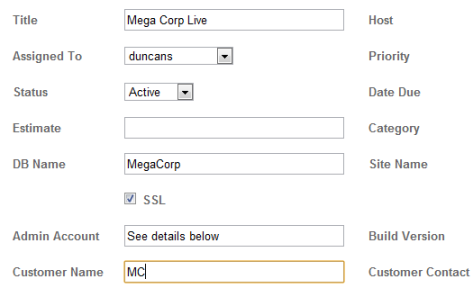
camelcase after

Anything that isn’t quite right can be overridden simply my explicitly adding DisplayNames to the model.

Is SQL Server Profiler showing Connection Pooling not working?

TL;DR: No – it’s just SQL Profiler not telling you the entire truth.

In evaluating Entity Framework 4.1 (aka EF Code-First or “Magic Unicorn” Edition) I’ve been keeping an eye on what SQL it’s actually executing against SQL Server (how’s that for a leaky abstraction?). Here I saw something slightly worrying which was that it appeared that the client was logging in, executing a query and then logging out as seemingly indicated by the Audit Login and Audit Logout events:

image

The same thing happens without EF using basic SqlCommand queries. To tell you the truth I’d noticed this a while ago but hadn’t got round to investigating.

Rather than assume that connection pooling was broken on my machine, I had a hunch that SQL Profiler was somewhat misrepresenting what was really going on.

Indeed Markus Erickson on StackOverflow mentions the EventSubClass column you can add to SQL Profiler’s output to see if those Audit Logon/Logout events are actually connections being pulled from the pool or fresh connections.

Here’s how you show the EventSubClass column in SQL Profiler (I’m running SQL 2005 on this machine, I can only assume it’s similar on 2008):

  • Go to the Trace Properties window and switch to the Events Selection tab.
  • Click on the Show all columns checkbox
  • Scroll to the right and locate the EventSubClass column and check both checkboxes:

  • Then go to Organize Columns and move the EventSubClass column up so that it’s next to EventClass:

image

Now you can re-run your trace and hopefully be reassured that connection pooling after all is functioning correctly!

image

Hope that helps!

Running IISExpress without a console window

I created a little Windows Script file that you can put in the root of a site that when double-clicked will run IIS Express without its usual accompanying console window.

IIS Express seems to require a parent process so you have to keep the calling process alive whilst it’s running. The lowest tech way I could think of doing this is to use Windows Script Host’s WScript.Run method that allows you to spawn processes in a hidden window and wait for them to exit.

You can view and download the code here.  https://gist.github.com/864322

Just place the IISExpress.js in the root of your website and double-click, it should then launch your browser at the root of the site. You can adjust the port and CLR version by tweaking the variables at the top of the script.

Hope it helps!